
You’re probably here because a playlist isn’t just a playlist.
It’s the first dance edit you trimmed around the intro. It’s the dinner run of soul, disco and quieter pop that keeps the room warm without flattening conversation. It’s the late-night stretch where the floor moves from singalongs into house, and every version choice matters. Then someone says they want it on Apple Music, or you decide you want the better audio quality there, and the obvious question lands hard: can you transfer spotify playlists to apple music?
Yes, you can. The important part is doing it in a way that doesn’t wreck the sequence, swap the wrong versions, or leave you discovering missing tracks when guests are already at the bar.
Your Curated Playlists Can Make the Move
A wedding playlist built properly has intent in it. You don’t throw in random favourites and hope for the best. You place records so the room opens gradually, peaks at the right moments, and never loses trust in the person controlling the music.
That’s why this question matters more for DJs and planners than it does for casual listeners. If you’ve spent time building a Kent reception set around disco, funk, soul and old-school house, you need the move to preserve the feel, not just the song titles.
A few years ago, the honest answer would have been irritating. You could move playlists, but there wasn’t a direct Apple button for UK users. You had to lean on third-party apps, accept their limits, and then clean up the mess manually. That changed when Apple Music’s native transfer tool became available in the UK in September 2025, which was widely noted as a significant shift for people moving from Spotify without rebuilding everything by hand (MacRumors on Apple Music transfer tool expansion).
That matters because a wedding or private event playlist often contains more than broad catalogue tracks. It contains clean edits, specific album cuts, live versions you chose on purpose, and pacing that only works when the order stays intact.
A professional transfer isn’t “did the songs arrive?” It’s “did the right versions arrive, in the right order, with no awkward surprises?”
If you’re handling an event where timing and transitions matter, treat the transfer as prep, not admin. The transfer itself is only the first pass. The important work is validation.
For anyone curating music with intent, this is the standard to aim for: move the playlist, check the versions, confirm the flow, and only then trust it at an event. If you want a visual reminder of that mindset, this artwork says it neatly: Music That Feels Personal. Events That Feel Legendary.

Choosing Your Playlist Transfer Method
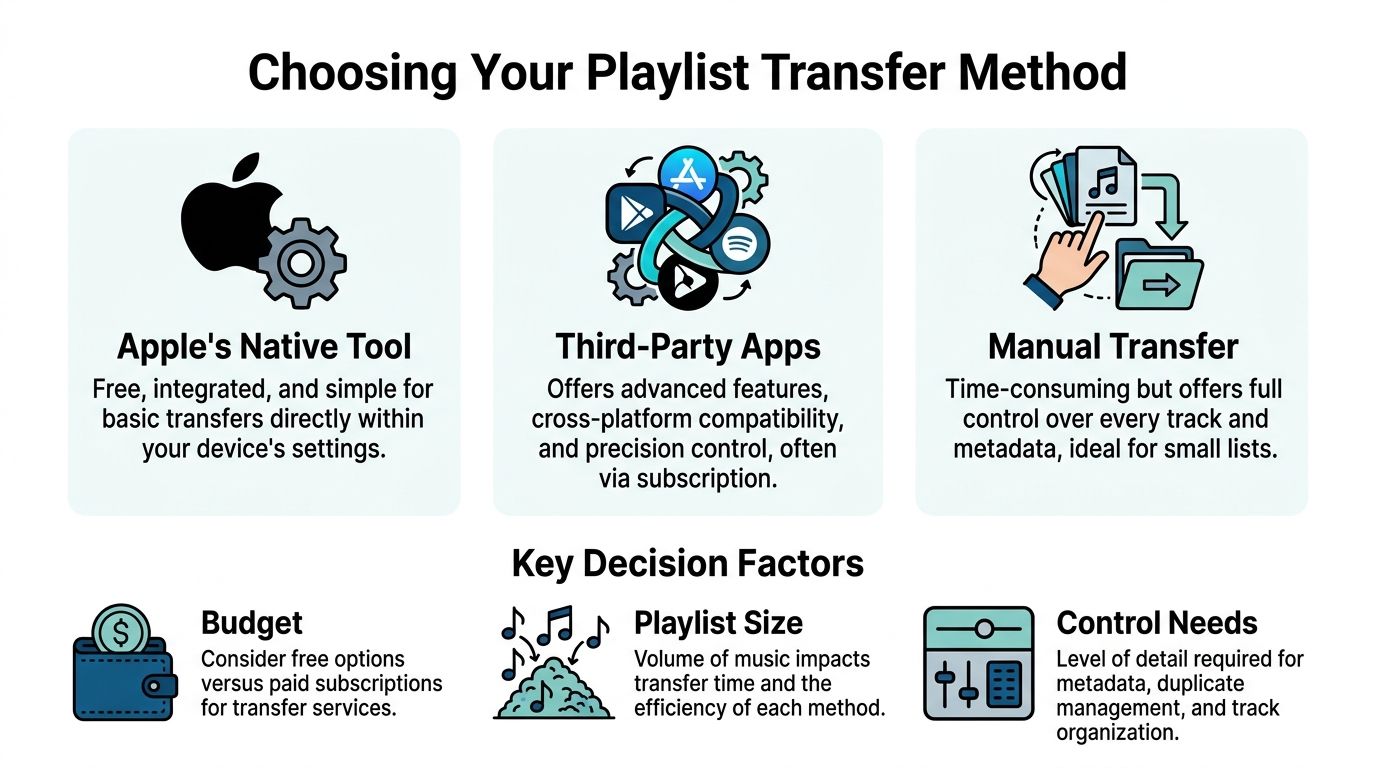
There isn’t one best method. There’s the best method for your job.
If you’re moving a couple of personal playlists, Apple’s built-in option is the obvious place to start. If you’re carrying a deeper DJ library, awkward imports, and multiple event folders, the calculation changes quickly.
What matters in real use
For event work, I’d judge transfer tools on five things:
- Match quality: Can it identify the exact track you meant, not just something close?
- Library scale: Does it stay reliable when you’re moving large collections?
- Review control: Can you catch mismatches before they become a problem?
- Speed under pressure: If a client changes platform this week, can you get sorted quickly?
- Clean-up workload: How much manual checking will you still need afterwards?
One of the biggest dividing lines is large-library handling. Tune My Music reports 99.7% match accuracy via fuzzy matching and has been cited as outperforming Apple’s native tool by 20% on large libraries, with 4,200 tracks transferred versus 3,300 in the benchmark referenced on its transfer page (Tune My Music Spotify to Apple Music transfer details). That’s the sort of difference a working DJ notices.
Spotify to Apple Music Transfer Tool Comparison
| Feature | Apple Native Tool | Soundiiz (Premium) | Tune My Music (Premium) |
|---|---|---|---|
| Best for | One-off transfers inside Apple’s ecosystem | People who want broad platform support and organised migration tools | DJs and heavy users moving bigger libraries |
| Built into Apple devices | Yes | No | No |
| Cost position | Free | Paid for fuller use | Paid for fuller use |
| Handling of free transfers | Convenient for compatible content | Free use is limited, so larger jobs usually push you to premium | Stronger fit for advanced transfers |
| Large-library confidence | Good starting point | Usable, but may involve more staged transfers and review | Better suited when scale and matching precision matter |
| Professional use case | Solid for clean mainstream playlists | Useful if you already manage music across several services | Strong option for obscure edits, imports and large wedding libraries |
Soundiiz still has a place. Its free tier is limited to 200 songs per playlist and one playlist at a time, which is fine for testing but usually too restrictive for event work. If you’re moving a full wedding library, that limit gets old fast.
Manual transfer sits in the background as the fallback. It’s slow, but it’s still the right answer for tiny, high-stakes playlists where every title must be checked by hand.
Decision rule: use Apple’s native tool when you want speed and simplicity, use a premium third-party app when precision matters more than convenience, and go manual for any shortlist that absolutely cannot tolerate substitutions.
There’s also a practical style point. If your playlists are organised around moments such as drinks reception, dinner, first dance backups and peak-floor resets, save a copy of the original structure before you transfer. This little graphic is a good reminder that clean systems beat rushed ones: graphic asset.

A Guide to Apple’s Native Transfer Tool
Apple’s own tool is the easiest first move because it sits inside the Apple environment. For many people, that alone makes it the right starting point.
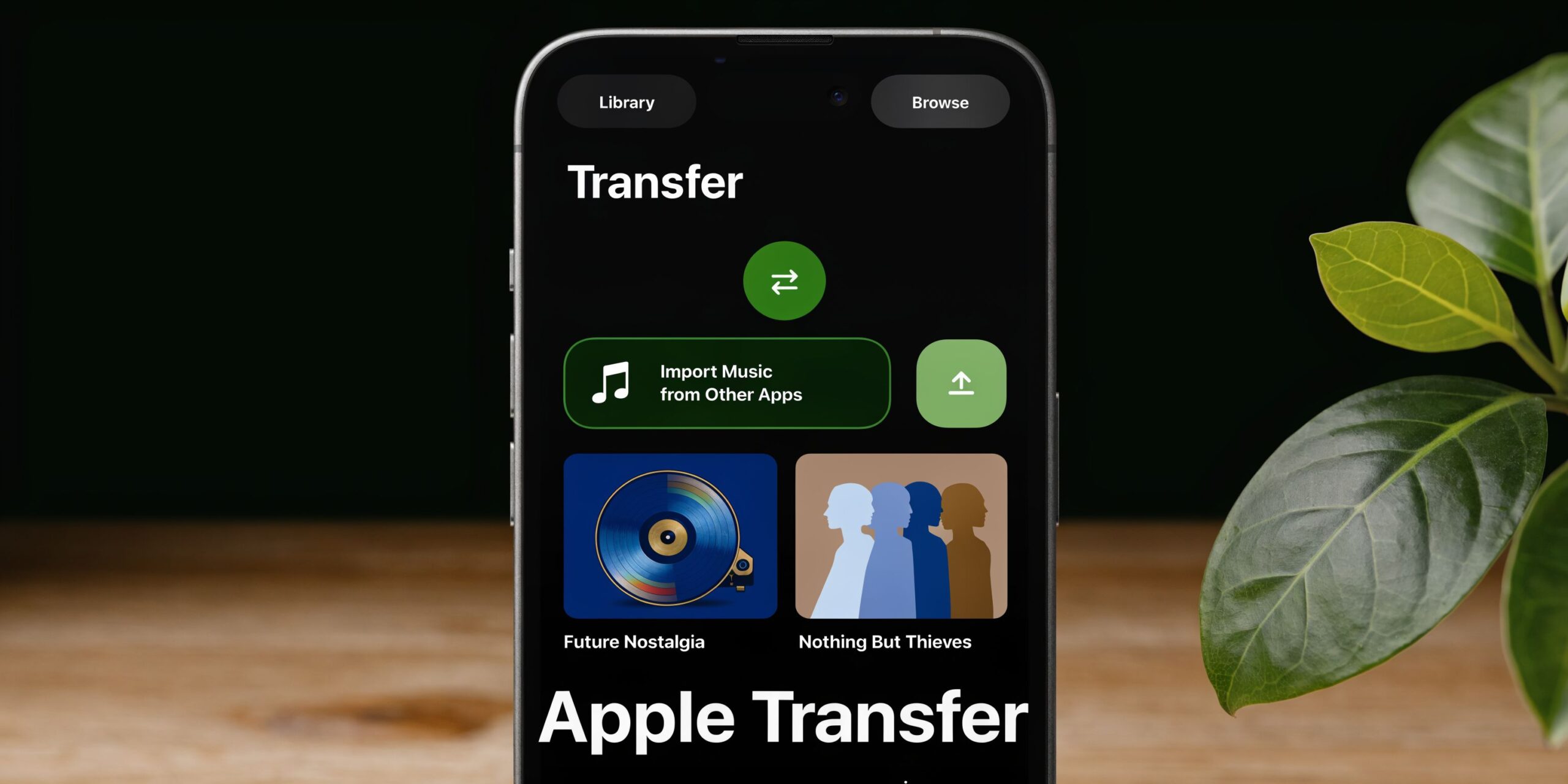
The process lives in Settings > Apps > Music > Transfer Music from Other Music Services. It’s powered through Apple’s partnership with SongShift, and the basic workflow is straightforward.
Start with authorisation
You sign into Spotify and give the transfer system read-only access. That matters because it’s not rewriting anything in your Spotify account. It’s reading your playlists, albums and liked songs, then trying to match them inside Apple Music.
If you’re doing this for event prep, make sure you’re logged into the correct Spotify account before you begin. Plenty of people have a personal account and a separate account they use for planning, and it’s easy to authorise the wrong one in a rush.
Select fewer playlists than you think
Apple’s tool can handle substantial libraries, but reliability improves when you work in sensible batches. For a pro workflow, I wouldn’t dump every event playlist into one go if I had time to stage it.
Build around priority.
Transfer the next live job first. Then move the evergreen sets. Then bring over the archive material you rarely touch.
According to the transfer guidance and benchmarks cited alongside Apple’s support material, Apple’s native tool achieves roughly 95 to 98 per cent success rates for standard UK tracks, and near-match review cases show up in about 2 to 5 per cent of transfers (Apple Music transfer support reference). That’s strong enough to trust as a first pass, but not strong enough to skip checking.
Review every flagged match
This is the most important part.
The transfer can return a track that’s technically correct but musically wrong. That’s where playlists get damaged. The system may find a live version instead of the studio cut, a remaster with a different feel, or a version with a longer intro that wrecks a planned handover.
For a wedding set, those differences matter. If you’ve lined up a warm soul record to sit gently after a speech, and Apple replaces it with a louder remaster, the room feels the jump immediately.
Look carefully at:
- Version labels: live, remastered, radio edit, mono, explicit, clean
- Track length: if the duration is noticeably different, inspect it
- Album source: greatest hits versions can behave differently from album originals
- Featured artists and edits: club mixes and single versions often get matched loosely
Don’t approve a near-match just because the title looks right. Check the release and duration before you accept it.
Watch for what won’t come across
Some things don’t transfer cleanly.
Playlist folders are one example. If you use folders to keep weddings, corporate sets and private parties separated, expect to rebuild that organisation inside Apple Music afterward. The songs may move. The structure around them may not.
Region availability is another issue. If a track exists on Spotify but not in Apple Music’s UK catalogue, the system can’t create it out of thin air. You’ll need an alternate version or a replacement track.
When Apple’s tool is enough
For mainstream wedding music, it’s often enough.
If your playlist leans heavily on standard catalogue favourites, current dancefloor material, and widely available classics, Apple’s built-in transfer is usually the fastest route from one platform to the other. It’s free, integrated, and for many users it gets the job done without much fuss.
Where it needs help is at the specialist end. Imports, niche edits, regional oddities, and version-sensitive tracks deserve a slower second pass.
Using Third-Party Apps for Advanced Control
If Apple’s tool is the easy route, third-party apps are the technician’s route. They’re what you use when “close enough” isn’t acceptable.
That tends to be the case for DJs, wedding planners with tightly scripted moments, and anyone whose playlists include unusual versions that standard matching can mishandle.
Why paid tools earn their keep
A premium transfer app buys you control.
You’re not just asking the software to move a list. You’re asking it to identify edge cases, handle bigger libraries cleanly, and give you more room to correct issues without starting over. That’s why tools such as Tune My Music, Soundiiz and FreeYourMusic keep turning up in professional workflows.
The wider reason many people make the move is sound quality. Apple Music offers lossless and hi-res lossless up to 24-bit/192kHz at no extra cost, while Spotify Premium is capped at 320kbit/s, a difference highlighted in migration-focused coverage of the 2025 shift toward Apple Music transfers (FreeYourMusic on why people leave Spotify for Apple Music). If you care about a clean PA signal, that’s not a trivial detail.
How to use third-party apps properly
The smart way to use these tools isn’t to throw everything at them and hope.
- Begin with a test playlist: Choose one that includes common tracks, one or two awkward versions, and at least a couple of tracks you know well enough to spot a mismatch immediately.
- Check duplicate handling: Some apps are better than others at avoiding repeated tracks when you retry a transfer.
- Move priority crates first: For DJs, that means active event playlists before deep archive material.
- Use validation features when available: If the app gives you a match report, read it. Don’t assume green ticks mean version-perfect matches.
A good premium app also helps when your collection spans platforms. Plenty of DJs build in Spotify, road-test ideas elsewhere, and maintain backup libraries for safety. Third-party services fit that reality better than a single-platform tool.
Professional prep means building redundancy. One platform for planning, one for playback, and a checked backup if licensing or matching gets awkward.
When third-party is the better choice
Use it when your playlists contain hard-to-match material, when you need more than a basic one-time transfer, or when your tolerance for error is low because the event is paid work.
For a family party playlist, Apple’s route may be enough. For a wedding where the bride has specified particular versions of key songs, I’d rather have the extra control.
Pro Tips for DJs and Event Curators
A successful transfer doesn’t end when the songs appear in Apple Music. That’s where the quality control starts.
For event work, the playlist has to survive contact with a real room. That means preserving mood, sequencing and reliability, not just collecting the right artist names.
Protect the order
Playlist order is part of the craft.
If your wedding set rises from cocktail soul into disco, then broadens into floor-fillers, any accidental reshuffle changes the energy curve. Check the sequence after transfer, especially if you built the list manually rather than sorting by artist or album.
I’d also keep a text or screenshot backup of the original order before moving anything. It gives you a quick reference if something slips.
Verify key versions by ear
Don’t trust metadata alone.
Some substitutions look harmless on screen and sound wrong through speakers. The radio edit may cut too soon. The remaster may feel brighter and harsher. The live version may have crowd noise that kills a transition.
For high-stakes moments, audition the opening, the first chorus and the outro. Those are the sections most likely to affect the mix.
The safest workflow is simple. Check every first dance option, every entrance song, and every late-night reset track manually.
Prepare for offline use
Venue internet is not your backup plan.
Once the playlist is transferred and verified, download it for offline playback inside Apple Music. Then confirm the downloads have completed. A greyed-out icon at the venue is not the time to discover the sync failed overnight.
Accept that some data won’t move
Streaming playlist transfers don’t carry over everything DJs use operationally.
Your cue points, custom comments, BPM notes, energy tags, and any software-specific preparation usually live somewhere else. If those details matter to your workflow, rebuild them inside your playback system after the transfer.
The music may transfer. The performance setup still needs your hands on it. Such disciplined prep separates a user from a working DJ.
If your style leans toward polished, intentional event programming, this visual captures the booth-side mindset nicely: Golden vibes in the DJ booth.
Troubleshooting Common Playlist Transfer Issues
Even a clean transfer can throw up annoyances. Most of them are fixable, or at least manageable, if you know what kind of problem you’re looking at.
Missing or greyed-out tracks
This usually comes down to catalogue differences.
A song may exist on Spotify and not be available in Apple Music’s UK catalogue, or the specific version may be missing. In practice, that means you either choose the closest acceptable version or replace it with another track that does the same job in the set.
For event work, don’t leave these unresolved. Mark them and deal with them before the day.
The transfer stalls halfway through
When a transfer freezes, the usual fix is patience and smaller batches.
Try again after a short pause. If the playlist is large, split it into chunks and move those separately. That gives you a cleaner view of where the failure happened and usually makes review easier as well.
Wrong versions got matched
This is the classic professional headache.
If the title is right but the version is wrong, don’t keep pushing the same transfer and expecting a different result. Remove the bad match, search Apple Music manually, and insert the correct version yourself if it exists.
That manual correction is often faster than repeated retries.
Duplicate playlists appear
Duplicates tend to show up after failed attempts or repeated retries.
Delete the incomplete copy, keep the version you’ve reviewed, and rename it clearly so no one grabs the wrong list in a rush. If you’re preparing for a wedding, label final playlists in a way that makes sense under pressure.
Spotify authorisation won’t connect
This is often a stale login problem.
Log out of Spotify, log back in, then retry the connection. If that doesn’t work, close the app or browser session you’re using and start fresh. It’s a boring fix, but it solves a lot.
If you’re planning a wedding, private party or corporate event and want the music handled with this level of care, VinylGold brings a London DJ’s eye for detail to every part of the soundtrack, from playlist planning and version selection to packed dance floors and smooth, reliable delivery on the day.